Showing posts with label blended classroom. Show all posts
Showing posts with label blended classroom. Show all posts
Tuesday, October 15, 2013
Universal Design for Learning tip: How to screencast reading accommodations and scaffold reading strategies with screencast-o-matic


Saturday, September 7, 2013
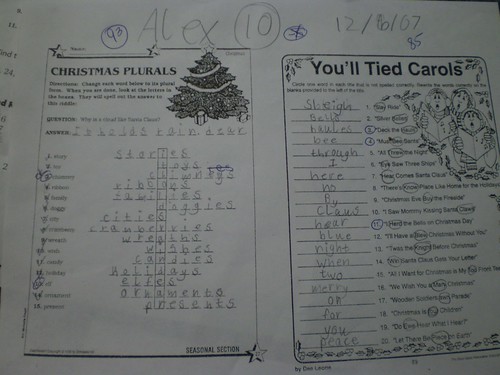
The Problem with Paperless
 |
| cc licensed ( BY SA ) flickr photo by Wesley Fryer: http://flickr.com/photos/wfryer/2110288948/ |
Like many of you, I've been working with the SAMR model of technology integration to help myself and others redefine learning in a technology enhanced environment. I contend that digitizing the workflow for worksheets isn't Substitution. In fact, it doesn't even land on the SAMR continuum in my opinion. Not only are there a ridiculous number of hurdles to making worksheets paperless, hurdles that interfere with the basic intent to "be instructive and provide meaningful practice and application of ideas", but it makes the most important elements of timely feedback and fixing mistakes nearly impossible.
Here is what many of my conversations have started to sound like or will sound like going forward.
- If the worksheet is worth doing (i.e. it is instructive and provides meaningful practice or application) feel free to make copies and hand it out.
- Feel free to put a digital copy (within copy rights) online for students and families to access as a reference and for printing.
- Allow a student to annotate and submit the work electronically if needed (long term illness or travel) and take the time to give feedback.
And here are my tips for transitioning toward digitally enhanced forms of practice and application that take some cues from or extend the activities found on the worksheets.
- Add QR Codes or weblinks to the top of the worksheet that link to support resources, audio recordings of the directions and questions, challenge questions, or online group discussions.
- Take questions that have fixed responses such as True/False and multiple choice and use a digital assessment tool like Socrative, Edmodo quizzes, or Google Forms to automatically grade student responses and provide immediate feedback.
- Take one or two open ended questions that require higher order thinking skills or application of knowledge and ask students to submit digital responses, electronic projects, videos, etc. in response to these questions.
- Challenge students to develop questions that fall across Bloom's taxonomy and then distribute these to their peers using a tool like Google Forms or a discussion forum in Moodle.
- Consider Project Based Learning (PBL) as a way to move away from textbooks and worksheets and into authentic and purposeful learning driven by meaningful "driving questions".
How would you add to this list of tips and what suggestions do you have for teachers hoping to transition away from traditional worksheets using effective teaching methods and digital tools? Oh, and if you happen to be riding the Unicorn of Digital Worksheet Love share your secret to success.
Thursday, February 14, 2013
The fist whisperer and other tales of iPad integration
Yesterday I was challenged by one of the elementary schools that I work with to help model iPad integration by using iPads 1:1 with students during direct instruction and then transition into a 1:1 iPad independent activity. I developed four different lessons targeted at K-1, 2-3, 4th and 5th grade. The lessons ranged from reading comprehension and academic vocabulary to comparative adjectives and research skills (at the teachers' request). Needless to say I was pretty pooped by the end :-)
Interestingly enough, one of the most popular strategies I used to facilitate my lessons was not tech related at all. I'm sure this strategy has a real name, but let's call it a modified think, pair, share. Whenever I asked questions, I asked students to whisper their answer into their closed fist first, then whisper share with a partner and then alternated between choral response or picking a random student depending on the nature of the question. The students seemed to really enjoy this and I had nearly 100% participation through out the lesson.
For my mini-lesson I wanted to minimize the number of apps we would use and ensure a high level of engagement during my presentation, so I selected Nearpod as my platform. I was pleased with the way that the app helped hold the student's attention while I moved through the slides and interspersed my presentation with interactive formative tools. The problem is setting up my Nearpod presentations took a bit of tech ninja skills to get the results I wanted. And after talking with several teachers I learned that many were most attracted to the whiteboard feature in Nearpod after seeing my demonstrations.
I'm still really pleased with what I was able to do with Nearpod especially because I was seeking a way to move seemlessly between the slides I created in Haiku Deck and the formative classroom response tools I wanted.
I loved the challenge of creating these lessons and wish I would have had even more time to develop the underlying lessons. The best part though was working with so many great students. What Fun!
Interestingly enough, one of the most popular strategies I used to facilitate my lessons was not tech related at all. I'm sure this strategy has a real name, but let's call it a modified think, pair, share. Whenever I asked questions, I asked students to whisper their answer into their closed fist first, then whisper share with a partner and then alternated between choral response or picking a random student depending on the nature of the question. The students seemed to really enjoy this and I had nearly 100% participation through out the lesson.
For my mini-lesson I wanted to minimize the number of apps we would use and ensure a high level of engagement during my presentation, so I selected Nearpod as my platform. I was pleased with the way that the app helped hold the student's attention while I moved through the slides and interspersed my presentation with interactive formative tools. The problem is setting up my Nearpod presentations took a bit of tech ninja skills to get the results I wanted. And after talking with several teachers I learned that many were most attracted to the whiteboard feature in Nearpod after seeing my demonstrations.
As luck would have it, later that night I learned about Infuse Learning from the #miched chat that occurs every Wednesday at 8pm. It has many similar features to the classroom response app Socrative, but with the additional feature of a whiteboard responder and (drum roll please!) text-to-speech. I have only had a brief time to test Infuse Learning but my feeling is that it this web app has great potential and a lower learning curve than Nearpod.
I'm still really pleased with what I was able to do with Nearpod especially because I was seeking a way to move seemlessly between the slides I created in Haiku Deck and the formative classroom response tools I wanted.
I loved the challenge of creating these lessons and wish I would have had even more time to develop the underlying lessons. The best part though was working with so many great students. What Fun!
Sunday, February 10, 2013
Edtechkit Weekend Report - 2/10/13 "Punchin' the time clock" #scc21c
Links of the week
I come across all kinds of great articles and resources every week. These are a few that I've bookmarked or shared on Twitter that warrant a second look for myself and perhaps a first look for you.
I'm a fan of Yong Zhao and value his insights regarding the big picture of our educational system in the U.S. It's no secret that he is not a fan of high stakes testing or the nationwide push toward standardization. Whether or not you agree with his opinions, I recommend reading this recent interview.
I was privileged to meet two extraordinary teachers, Shawn Wheeler and Ken Kozzar from Cleveland, Ohio a few weeks back at Educon 2.5. They blog under the moniker Teaching Humans about their journey creating a "school within a school" founded on cross-curricular, mastery based, project based learning (PHEW!). A current project they are running is called the Wikiseat Project that incorporates design thinking principals, Emersonian philosophy and a whole lot more. Check out one student's blog reflection about this project to see an example of the type of reflection and engagement schools should really try to achieve.
And a just few more for the fun of it:
I'm a fan of Yong Zhao and value his insights regarding the big picture of our educational system in the U.S. It's no secret that he is not a fan of high stakes testing or the nationwide push toward standardization. Whether or not you agree with his opinions, I recommend reading this recent interview.
I was privileged to meet two extraordinary teachers, Shawn Wheeler and Ken Kozzar from Cleveland, Ohio a few weeks back at Educon 2.5. They blog under the moniker Teaching Humans about their journey creating a "school within a school" founded on cross-curricular, mastery based, project based learning (PHEW!). A current project they are running is called the Wikiseat Project that incorporates design thinking principals, Emersonian philosophy and a whole lot more. Check out one student's blog reflection about this project to see an example of the type of reflection and engagement schools should really try to achieve.
And a just few more for the fun of it:
- What would you do as the Director of Blended Learning? - My learning network is invisible. At least it is to everyon... http://ow.ly/2uMCyI
- iPads in Primary Education: Enhancing Topic Work (World War 2) Across the Curr... http://mrandrewsonline.blogspot.com/2013/02/enhancing-topic-work-using-ipods-ipads.html?spref=tw …
#edtech#mlearning - iPad Collaboration TimelineJS http://edtechteacher.org/blog/2013/02/ipad-collaboration/ …
#edtech#mlearning
 Stephanie Dulmage
  Sue Gorman
 News and Upcoming Events in Michigan
Save the date. April 20, 2013 Jackson ISD will be hosting an innovative conference that plans to be half edcamp half brain trust (bringing in the REMC Connected Educators from around the state). It's sure to be a can't miss. Details to follow.
Another interesting conference you may want to check out is the Visual Thinking and Literacy conference April, 13, 2013 at Seaholm High School in Birmingham, MI. This won't necessarily be your typical education conference since it is open to business leaders, community leaders and educators. Design thinking and effective communication across all fields will be explored.
And don't forget! MACUL - Michigan's premier education technology conference is just around the corner March 20-22. This statewide event is an awesome opportunity to learn and network with some of the most innovative educators in our state. This year's MACUL conference is hosted in Detroit at the Cobo center. I'm facilitating two sessions this year - The Appcessible iPad (UDL strategies for the iPad) and co-presenting with Laura Chambless - Cooperative Learning and the iPad.
Another interesting conference you may want to check out is the Visual Thinking and Literacy conference April, 13, 2013 at Seaholm High School in Birmingham, MI. This won't necessarily be your typical education conference since it is open to business leaders, community leaders and educators. Design thinking and effective communication across all fields will be explored.
And don't forget! MACUL - Michigan's premier education technology conference is just around the corner March 20-22. This statewide event is an awesome opportunity to learn and network with some of the most innovative educators in our state. This year's MACUL conference is hosted in Detroit at the Cobo center. I'm facilitating two sessions this year - The Appcessible iPad (UDL strategies for the iPad) and co-presenting with Laura Chambless - Cooperative Learning and the iPad.
New Apps to check out
 File this one under the category of "Makes math teachers cringe". MyScript Calculator is a handwriting recognition calculator that can perform most basic math functions by interpreting handwritten numbers and symbols. It's amazingly accurate and really quite fascinating. I also feel that a tool like this has the potential to benefit students who struggle using traditional keypad based calculators. I've worked with many students who make simple input mistakes that effect the accuracy of their answers. Drawing the number 3 is less prone to mistakes than accidentally pressing the key next to the three. It might also benefit students who have difficulty with fine motor skills.
Roll your own Professional Development


I had a very productive Friday. More about that below. I've made three more Google Drive tutorials for my Google Apps for Education series. You can view all of these resources and the accompanying written instructions on my website. Or take a look at these three latest screencasts.
Thought for the week
As I mentioned above I had a very productive Friday. Without going into all the details lest someone enamored with time clocks and seat time become upset, I will share that I was not at my desk during any of this burst of output. Blended learning is generating big buzz these days but I firmly believe that blended work environments that honor adult autonomy, comfort and schedules needs a closer look especially in education. I know. I know. - "We can't just have everyone running around making their own schedules and working in coffee houses whenever they like!" Not to mention that fact that teachers cannot "watch" our children if they are not in their classrooms. But I do believe that there are ways in which flexing our schedules and work spaces can work to the benefit of all. It involves partnerships and collaboration, utilizing technology to bridge space and time, and a commitment to innovation. And yes, integrity too but if that's not a given then we have a larger problem. Don't we?
Wednesday, August 1, 2012
Edmodo overview video with embedded formative assessment using the new quiz feature in Camtasia 8
I wanted to share this 7 minute introduction to Edmodo that I recently created using trial copy of TechSmith's newest version of their screencasting software Camtasia 8. Previously, Camtasia provided the option to embed assessment questions into their videos, however, the results could not be collected by the video creator. In this newest version of Camtasia the results are e-mailed nightly to the creator or an e-mail recipient selected by the creator as a spreadsheet file. This could be a fantastic way to promote active viewing within the video and determine how well the information is being received.
Feel free to check out the video below to see how the embedded assessments function or to learn more about the basic features of Edmodo. You can select the option to skip the quiz if you like by clicking on the "watch video only" link. Enjoy!
Feel free to check out the video below to see how the embedded assessments function or to learn more about the basic features of Edmodo. You can select the option to skip the quiz if you like by clicking on the "watch video only" link. Enjoy!
Monday, June 4, 2012
Curating the web with Scoop.it
I'm exploring options for curating and sharing the web as I find apps, articles and how-to's that support student centered learning. As you can see from the screenshot of my Chrome toolbar, I haven't exactly settled on one tool to use.

Diigo, Scoop.it, list.ly, livebinders, edmodo, twitter, pinterest - What tool are you using curate the web?

Diigo, Scoop.it, list.ly, livebinders, edmodo, twitter, pinterest - What tool are you using curate the web?
Wednesday, May 30, 2012
Getting Started with Educreations and Screencast-o-matic
Getting Started with Educreations and Screencast-o-matic
Educreations - http://educreations.com
Educreations is a recordable interactive whiteboard that captures your voice and handwriting to produce amazing video lessons that you can share online. Students and colleagues can replay your lessons in any web browser, or from within our app on their iPads.
Educreations works on both the iPad and on any internet browser.
FAQ - http://www.educreations.com/faq/
Educreations iPad app - http://goo.gl/jHwu8
Highlights
- Insert images and screenshots from the web to create narrated/annotated guides and tutorials.
- Create multiple pages for longer presentations (tip: pause recordings to preload images or draw annotations.
- Tutorials can be shared privately with students, by school, or with the whole world.
- Publicly shared screencasts made by other educators and students can be viewed, linked to and embedded in a class website.
Tips
- You cannot start over or re-edit a screencast once you begin recording. Be prepared and don’t worry if it isn’t perfect.
- Keep your presentations brief and engaging (your voice is a critical component)
Screencast-o-matic - http://www.screencast-o-matic.com/
One-click screen capture recording on Windows or Mac computers with no install for FREE! Record up to 15 minutes.
Screencast-o-matic is great for creating screencasts of powerpoints, TI-emulator tutorials, NCTM applet and Geometer’s sketchpad activities, and narrated directions or test accommodations.
Getting started video - http://www.youtube.com/watch?v=D4rk5ACdGk4
Highlights
- No account required (Great for quick use with students). However the free account lets you store and link to your files online as well as upload to youtube automatically.
- Capture anything on your computer screen and your webcam.
- Pro-version is only $15 for one year
Tips
- You cannot start over or re-edit a screencast once you begin recording. Be prepared and don’t worry if it isn’t perfect.
- Keep your presentations brief and engaging (your voice is a critical component)
Other screencasting resources
Kit’s screencasting website - https://sites.google.com/site/mctmmultimath/Other iPad apps for sreencasting
- showme (FREE)- http://goo.gl/2MKKf
- screenchomp (FREE) - http://goo.gl/mQV3r
- explain everything ($2.99) - http://goo.gl/ZkhJb
Other screencasting software and websites
- Screenr (FREE) - http://screenr.com
- Camtasia ($299) - http://goo.gl/JRpFE
Upcoming PD:
- http://sccresa.org/toolsforschools/professionaldevelopment/workshopcalendar/
- June 26 iPads for beginners, June 28 iPads for intermediate, July 24th No more Death by PowerPoint, July 25 Cooperative Learning with or without and iPad, July 26 Blended learning with edmodo, August 9th screencasting for the classroom, August 14 iPads for beginners, August 16 iPads for intermediate
Kit Hard
Education Technology Consultant
St. Clair County RESA
hard.kit@sccresa.org
810-455-4121
website/blog: http://edtechkit.com
Wednesday, April 18, 2012
A few quick thoughts on why I like the iPad
No, the iPad will not fix education. And, no, it is not the right device for all settings. But here are a few reasons why I think the iPad has already had a significant impact in schools.
1. I believe that the iPad is encouraging schools to fast track infrastructure projects involving wireless access and to increase bandwidth.
2. I have encountered more conversations about "going 1:1" and "bring your own device" in the past year than ever before.
3. The iPad can't truly be locked down. I think that this is pushing educators to look at "digital citizenship" more closely and to revise their AUP's from what you "can't" do to what you "should" do. It also encourages meaningful and authentic learning over "you need to learn this just because". If we can't answer the question, "Why do I need to learn this?" then our students will turn elsewhere. Honestly, why shouldn't they?
4. It's mobile. That's right folks. This thing can move to any part of the room, can leave the room, can "gasp!" even go outside. The 4 walls and a stage with tidy desks in a row is not working. Our learning spaces can and should be more dynamic. If the iPad helps, Fantastic!
For me, it's not about the apps, the swipes, or cool. It's about shifting our focus toward student centered learning. If the iPad is pushing our conversations and practice toward this goal then I'm excited.
1. I believe that the iPad is encouraging schools to fast track infrastructure projects involving wireless access and to increase bandwidth.
2. I have encountered more conversations about "going 1:1" and "bring your own device" in the past year than ever before.
3. The iPad can't truly be locked down. I think that this is pushing educators to look at "digital citizenship" more closely and to revise their AUP's from what you "can't" do to what you "should" do. It also encourages meaningful and authentic learning over "you need to learn this just because". If we can't answer the question, "Why do I need to learn this?" then our students will turn elsewhere. Honestly, why shouldn't they?
4. It's mobile. That's right folks. This thing can move to any part of the room, can leave the room, can "gasp!" even go outside. The 4 walls and a stage with tidy desks in a row is not working. Our learning spaces can and should be more dynamic. If the iPad helps, Fantastic!
For me, it's not about the apps, the swipes, or cool. It's about shifting our focus toward student centered learning. If the iPad is pushing our conversations and practice toward this goal then I'm excited.
Tuesday, April 17, 2012
How to enable diigo bookmarking in Safari on the iPad
While I am no diigo guru, I have come to rely on the bookmarking and highlighting features it offers. I use the diigo browser extension for chrome to make saving websites and web highlights a snap. I recently learned how to enable similar features using the iPad's Safari browser and have create a brief tutorial showing how to set this up. The tutorial assumes that you have downloaded the diigo app for iPad and that you have created a diigo account.
For more information about diigo and its uses in education take a look at this resource.
For more information about diigo and its uses in education take a look at this resource.
Sunday, February 26, 2012
Classroom audio recording is a Cinch
Update: Cinch.fm and it's app are no longer in service. I recommend replacing these with AudioBoo or Soundcloud.
Cinch.fm and the cinch app for iOS devices have become my go to audio recording and podcasting tool. Let me tell you why.
First is ease of use. Both the cinch.fm website and the app are very easy to use when it comes to sign-up, recording, and listening to recordings. Second is the unlimited recording time (unlike audioboo.fm which limits recordings to three minutes). Third is the ability to make recordings using your computer and a microphone (website), using an iPad, iPhone, or 4th generation iPod touch (app), or record using any phone associated to your Cinch account.
The classroom applications are endless but here are just a few of the reasons why Cinch is the best option in my opinion.
With cinch.fm you can also add photos and text to the audio recording. With the iOS app teachers and students can quickly and easily add a picture from the camera roll or take a picture with camera enabled devices. Text is limited to 140 characters. Ideas for teacher or student use include:


Cinch.fm and the cinch app for iOS devices have become my go to audio recording and podcasting tool. Let me tell you why.
 |
| My son listening to a Cinch recording of his favorite book |
First is ease of use. Both the cinch.fm website and the app are very easy to use when it comes to sign-up, recording, and listening to recordings. Second is the unlimited recording time (unlike audioboo.fm which limits recordings to three minutes). Third is the ability to make recordings using your computer and a microphone (website), using an iPad, iPhone, or 4th generation iPod touch (app), or record using any phone associated to your Cinch account.
The classroom applications are endless but here are just a few of the reasons why Cinch is the best option in my opinion.
- Recording lectures that are immediately available online for students who are absent or need to hear the material again
- Parent communication podcast (Audio newsletter, Daily activity and homework reporting)
- Audio directions for worksheets or test accommodations
- Student interviews and observational data
- Student recordings of think alouds, group projects, audio notes, student created tutorials, fluency practice, or adding audio to physical projects such as posters, dioramas, or written work
With cinch.fm you can also add photos and text to the audio recording. With the iOS app teachers and students can quickly and easily add a picture from the camera roll or take a picture with camera enabled devices. Text is limited to 140 characters. Ideas for teacher or student use include:
- Taking pictures of objects around the classroom or school that relate to a theme or concept (e.g find and describe examples of ecosystems or geometric shapes)
- Taking pictures of charts, graphics, or text and recording audio to answer questions
- Asking students to take pictures of their work and record reflections about the content
- Have students record themselves reading classroom books or materials. Use QR codes or shortened URL's to let others listen - See the How-to below.
Setting up a Cinch account - I recommend creating a generic classroom account if students will be recording. I also suggest making your folders private by default.


or using the cinch app

Make private folder(s) for your recordings (folders can only be created from the website)

Make a recording using the website or app


Add photos and text to the recording


Share your recording by shortening the URL or QR codes from the website

I recommend installing a QR code/URL shortener like goo.gl to your Chrome or Firefox browser or going to http://qrcode.kaywa.com/.

Start adding QR codes and shortened URL's to books and other classroom objects. You can use a QR scanner app for your iOS devices to make access to the recordings a snap!

Listen for your self.
Tuesday, July 19, 2011
Quick thoughts on Qwiki for iPad #iear #edapp #edtech #ttdn
Just before the end of the school year I was able to check out an iPad from our RESA Assistive Technology lending library and test a few different apps with students. One of the apps I felt had great potential in the classroom was Qwiki. Qwiki compiles reference information from sites like wikipedia, images, videos, and maps to create an immersive information experience. But the most unique feature is the text-to-speech narration that accompanies every Qwiki. Captioning at the bottom of the screen is read by the text-to-speech engine giving the user the option to listen or read along. In essence, Qwiki turns your searches into movies.
In the short video clip above, students used Qwiki to research elements from the periodic table for a science project. I was impressed by the engagement level I saw, but also noted that the students using the Qwiki app were jotting down notes for their projects and reviewed their Qwiki search multiple times before moving on to the related searches presented at the end of the presentation. Because we were testing in an open environment without headphones other students paused to watch as well and even started discussing some of the qualities of the element being shown. This was vastly different from the disinterested search process that I had witnessed before I introduced the app.
It is worth noting that Qwiki is not just an iPad app. Their website http://www.qwiki.com offers an identical experience minus the intuitive touch screen interface. I'd love to see Qwiki develop some editing features that would allow students to curate their own resources and create dynamic presentations that could be shared.
Have you used Qwiki in your classroom? Please share your thoughts on how you think this website and app might support struggling learners or help increase engagement.
Monday, November 22, 2010
Classroom tools: Using phones to generate voice-to-text transcriptions, reminders and audio recordings
In my recent post on using audio and podcasting in the classroom I discussed phone recording options such as Google Voice and ipadio.com. In this post I am looking more specifically at phone services which record audio and transcribe voice-to-text, but are designed primarily as reminder and to do applications.
What are the benefits in education?
What are the benefits in education?
First, phones are one of the most ubiquitous technologies in schools. Land line phones as well as cell phones are available to almost everyone both in school and at home.
Secondly, reminders and to do lists are an important organizational strategy. Services such as Dial2do.com and Reqall.com add features which traditional to do lists lack such as access on multiple internet connected devices and integration with other online services such as calendars, social media, and blogging. And unlike traditional lists and reminders the audio recordings provide another means of accessing and remembering important information.
Teachers could use these services to broadcast classroom notes and alerts or for personal organization and reminders. Students can use these services to become more organized but may also benefit from their voice-to-text transcriptions. This may particularly beneficial for students requiring assistive technology such as struggling writers or students who have difficulty using a writing device or keyboard.
Dial2Do
"Today I've been looking at a couple of different phone services which I might promote for students who are having difficulty writing things down. Dial2do is a phone service that converts voice to text and transcribes those messages-"
Powered by
Dial2do appears to be moving toward a two tiered pay model and no longer offers a free account. Dial2do integrates nicely with services like Twitter and Blogger. The recordings are limited to aproximately 20 seconds, but the transcriptions are very good. The recordings are in Mp3 format and can be downloaded or listened to directly using the web based audio player.
Reqall
Here's another test I made today using reqall.com -
"Imagine using your cellphone to write your next persuasive essay. There's a student sitting at a table. He's looking at the assignment. He needs to write an essay. He pulls out his cellphone. In the future essays may be written by students who call in their paragraphs and have them dictated by a phone." Link to audio
Unlike Dial2do, reqall.com does offer a free and paid account model. It also has an iOS app which integrates nicely with the service and allows voice messages to be recorded and transcribed using an iPhone, iPad, or iPod Touch. The time limit appears to be slightly longer, about 30 seconds, however the transcription did not pick up punctuation at the end of sentences and a few words required correction. One feature which I feel is missing is an embeddable Mp3 player for listening to audio online. Reqall Pro offers integration with services such as calendars, social networking, and Evernote.
Powered by
Dial2do appears to be moving toward a two tiered pay model and no longer offers a free account. Dial2do integrates nicely with services like Twitter and Blogger. The recordings are limited to aproximately 20 seconds, but the transcriptions are very good. The recordings are in Mp3 format and can be downloaded or listened to directly using the web based audio player.
Reqall
Here's another test I made today using reqall.com -
"Imagine using your cellphone to write your next persuasive essay. There's a student sitting at a table. He's looking at the assignment. He needs to write an essay. He pulls out his cellphone. In the future essays may be written by students who call in their paragraphs and have them dictated by a phone." Link to audio
Friday, November 12, 2010
SCCRESA Dateline Schools radio interview #TTDN
This is a recording of my interview with Dateline Schools host Terry Harrington discussing 21st Century Learning and technology in education. We also discuss RESA's Tools for Teaching Digital Natives teacher cohort.
You can also listen to my Dateline Schools interview from last year by clicking here
Dateline: Schools Radio
Dateline: Schools Radio, a daily radio segment aired on WPHM-1380 AM, focuses on a different school program or issue every week.
This program airs three times daily on WPHM 1380 AM with host Terry Harrington.
You can listen to Dateline: Schools at 5:50 a.m., 12:55 p.m., and 6:55 p.m., Monday through Friday.
If you are unable to view the audio player, click here.
Monday, November 1, 2010
Saturday, October 2, 2010
ToonDoo and PicLit: Two tools for supporting UDL "Multiple Means of Expression"
Although I've known about ToonDoo for a while now, it was a blog post this morning at What Ed Said and a Tweet from @web20classroom about the site PicLits yesterday that got me thinking more about the great resources on the web for letting students explore and play with language and images in non-threatening and creative ways.


When we ask students to share what they understand about a particular concept or idea we usually expect verbal answers via a class discussion or formally written responses. We rarely ask or allow students to combine their verbal and written responses with images or video to help clarify their understanding, or when we do we usually build too many expectations into the project (you know - design a poster that explains every aspect of James Joyce's Ulysses) that many students feel overwhelmed at the analogue of image and ideas.
ToonDoo and PicLits are very inviting explorations of the way that images and text can communicate more effectively than either media alone. They work well as stand alone activities but can also be combined with larger multimedia activities like classroom blogs and sites like Glogster to help students express and reflect on their learning in fun and creative ways.
I imagine students exploring language and learning new vocabulary through PicLits' magnetic poetry styled site. Or using the freestyle text editor to address more specific written responses to questions posed by a lesson.
ToodDoo would be a great resource for asking students to represent or summarize an important scene from a text or to describe a math or science concept to a fellow student.
And both sites contain thousands of examples of student created work which could be curated and then presented to generate discussion about effective uses of language and images related to a specific classroom theme.
I know that providing more examples of how students would use these sites to share what they know would benefit anyone who reads this post. Are you using either of these sites in your classroom? How would you use these sites to support all learners in your classroom?
Friday, October 1, 2010
Getting Started with Google Docs: Presentation and Ustream recording
I've been looking back at some of the professional development resources I developed over the summer. I managed to capture my Google Docs presentation in August using Ustream and even found a way to edit out a few miscellaneous minutes that were unrelated so that this post should serve as decent starting point for anyone wondering what all the fuss is about with Google Docs and cloud based office suites. The rest of my Google resources can be found here at my website.
One aspect of this presentation that I'm particularly keen on is the focus at the beginning on how I use Google Docs Presentations (think PowerPoint) to model Universal Design for Learning strategies. I'm the first person to tell you that slide shows of any sort are generally a drag to watch, but hyperlinks and embedded media plus the ability to share the presentation out to personal computing devices and smartphones makes Google Docs a new kind of beast in the world of information delivery. Several accessibility issues are addressed when you allow individuals to view along with you on the screen of their choice at their own pace with the ability to go backward or forwards 24 hours a day 7 days a week with or without the presenter. Add some audio or even a video like the one below and you've got a "multiple means of representation" dream come true. Throw in the fact that interactive links turn the viewer into a participant and you start see how traditional delivery via a PowerPoint projected on a wall just doesn't cut the mustard.
My blog has been a bit quieter than I would like of late. September is a busy time for all of us in education, but hopefully the start of the school year has been as exciting for you as it has been for me. Enjoy the journey.
One aspect of this presentation that I'm particularly keen on is the focus at the beginning on how I use Google Docs Presentations (think PowerPoint) to model Universal Design for Learning strategies. I'm the first person to tell you that slide shows of any sort are generally a drag to watch, but hyperlinks and embedded media plus the ability to share the presentation out to personal computing devices and smartphones makes Google Docs a new kind of beast in the world of information delivery. Several accessibility issues are addressed when you allow individuals to view along with you on the screen of their choice at their own pace with the ability to go backward or forwards 24 hours a day 7 days a week with or without the presenter. Add some audio or even a video like the one below and you've got a "multiple means of representation" dream come true. Throw in the fact that interactive links turn the viewer into a participant and you start see how traditional delivery via a PowerPoint projected on a wall just doesn't cut the mustard.
My blog has been a bit quieter than I would like of late. September is a busy time for all of us in education, but hopefully the start of the school year has been as exciting for you as it has been for me. Enjoy the journey.
Can't see the presentation? Click Here
Wednesday, September 1, 2010
Classroom Broadcasting, 21st Century Learning Symposium, New Learning #TTDN #edtech #sccresa10
In this podcast episode I compare and discuss ways to broadcast and record from the classroom using mobile apps like audioboo.com, ipadio.com, and evernote.com. I also share my reflections on this year's 3rd annual 21st Century Learning Symposium hosted by the St. Clair County RESA. I conclude with a look at my recent attempts to set up my own Moodle and WordPress sites using the webhosting service bluehost.com. Running time:
Subscribe to:
Posts (Atom)