Over the past two weeks I've bookmarked four new resources for Elementary Math instruction that I believe are worth sharing. Two of these are more focussed on instructional practices and CCSS are not strictly technology resources but are in my opinion well suited to a technology enhanced classroom.
Common Core Standard: Third Grade Math Strategies - The first resource is from Edutopia, a great resource for every educator and well worth a look. In this article the author looks at one of the 3rd Grade CCSS for math and shares how an inquiry based, student-centered exploration of patterns and relationships between addition, multiplication and division can not only foster critical thinking and a deeper understanding but also collaboration skills.
Ready to use fact family iPad station - This post by Mrs. Wideen outlines precisely how she sets up and structures a math iPad station that promotes student application of fact family strategies. It's a great example of how to utilize a limited number of iPads, monitor student work, and develop a bank of student created "think alouds". One tool I might suggest in lieu of the Draw n' Tell app which is $2.99 would be the free Educreations app and to use a generic classroom account for collecting student work.
Maths Frame - 170+ Free Math Games - Richard Byrne who blogs over at Free Technology for Teachers shared a good resource for Smart Board and Interactive Whiteboards or for the computer lab. There you can find tons of interactive math practice games geared to the K-5 classroom.
http://www.mathplayground.com/ - Math playground is another smorgasbord of math practice games but has a couple very nice iPad apps the mirror their web based tools. In particular, I recommend taking a look at the Thinking Blocks activities for modeling word problem strategies using addition, subtraction, multiplication, and subtraction.
This week I offered two face-to-face PD workshops focussed on using QR Codes in the Classroom. One of my main goals was to ensure that everyone left the session with a QR code that could be used immediately with students to help meet a learning outcome in their classroom.
Here are the learning targets I set for this workshop.
Know and understand what a QR code is, how to scan a QR code, and how QR codes are being used in education.
Evaluate examples of how QR codes are being used in education to determine a classroom use specific to your classroom and record this as a goal.
Create a QR Code that targets a specific classroom outcome and implement with students.
If you are using Moodle to create a blended or online course but teach multiple sections of the same course throughout the year, you will probably want to set up separate groups for each section (or class hour) to facilitate group specific forum discussions, assignments, and for querying grades and user reports by class hour. The video tutorial and step-by-step guide below will help you set up your groups and group enrollment codes. Note: This process should be completed prior to enrolling students. A separate process is needed for manually sorting students into groups who were enrolled manually or through course self enrollment.
1.In the Administration block choose to Edit settings
2.In the Groups section, select Separate groups
3.Set Force group mode to Yes and then Save your changes
Second
Step 1: Go to Administration Tab and locate “users” under Course Administration
Step 2: Click on Users and then Enrollment Methods
Step 3: Enable “Self-Enrollment by clicking on the open eye icon
Step 4: Click on the setting gear icon for Student Self Enrollment
Step 5: Create an enrollment key. This should be different from the enrollment key(s) you will give to students. You will not tell this enrollment key to others.
Step 6: Check “use group enrollment keys” as yes and scroll to bottom to click save changes
Step 7: Go to Administration Tab and locate “groups” under Course Administration
Step 8: Click “Create Group”. In the Group editor give the group a name and an enrollment key specific to the group (ex. am1 or mrhard1). Click Save.
Step 9: Repeat step 8 for each group or class section you need giving each group a unique enrollment key.
In this video demonstration I show how students can use either the Chrome Speak app or theiSpeech Select and Speak extensions to have questions read aloud in either a Moodle or Edmodo quiz. Both the text-to-speech tools are available for the Chrome browser and Chromebook. Video Link
This is not a “perfect” print solution but it should give you a print copy that could be used with students and a printable version for submitting as part of an assessment evaluation portfolio.
Pic Collage is one of my favorite iPad apps. In the short video demonstration below I show how to use the frame tool to set up a basic vocabulary template and look at some ways to use Pic Collage with students as a graphic organizer. Tip: The frame tool may not work for every graphic organizer layout you would like students to use. Take a picture of a Venn Diagram, Character map, etc. that you've used in the past and set the image as a background using the background tool instead of the frame tool. Video link
In a somewhat ironic follow up to my last post, I want to share a resource I put together for our 1:1 Chromebook program at Marysville High School which outlines some steps for making the opening and editing of Word and PDF documents on the Chromebooks a little less painful. As I mentioned to my staff, the process that I'm sharing is not the only solution, merely one that I hope will reduce some of the steps normally involved. And as I also shared with my staff, this process may be changing soon if Google releases the Quick Office viewer and editing features to Google Drive later this Fall. Even though I don't advocate asking students to complete digital worksheets, there are sure to be times when viewing and marking up Word or PDF documents found on the web is necessary and helpful.
Opening and editing Word and PDF documents on the Chromebook
Immediately after installing a Docs PDF/Powerpoint Viewer Options tab will open, displaying the file types that will be opened in the Google Drive viewer.
Check the PDF option (Option 1) at the top and then click Save at the bottom of the screen
Click on a word document on any website
The document will now open in the Google Drive Viewer
To open and edit Word or PowerPoint click on the “Edit Online” icon
This will make a new editable copy for the student to work on
Locate the PDF file in the Google Drive inbox, right click on the file and select PDF Zen
In PDF zen use editing tools to mark up, click on “Actions” icon to save changes back to Google Drive or to get URL link for sharing or submitting in Moodle/Edmodo.
cc licensed ( BY SA ) flickr photo by Wesley Fryer: http://flickr.com/photos/wfryer/2110288948/
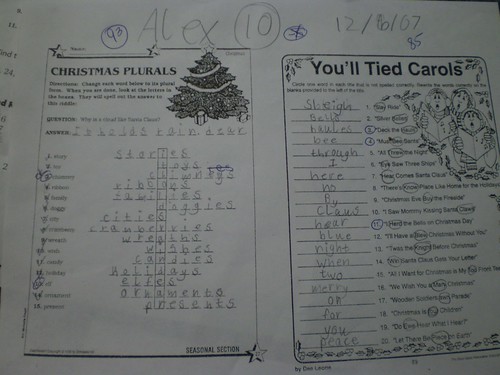
As I've been in and out of various classrooms this week a recurring theme has emerged - going paperless. While I applaud the intention of saving trees and making classroom resources accessible 24/7 across a variety of devices, there is a problem. There is a problem with digitizing worksheets and the convoluted workflow that inevitably ensues. This is especially true of worksheets that come from textbook providers, but also teacher-created worksheets in many cases. I want to be clear. I don't really have a problem with worksheets - they can be instructive and provide meaningful practice and application of ideas - at least in theory. And, yes, their are many worksheets that are worthless, time-killing, busy work that barely scratch the bottom of Bloom's taxonomy. But good or bad worksheets pose a particular problem in digital learning environments. You see, a worksheet was designed to be completed, submitted, assessed, marked-up and handed back by hand. Pen, pencil, crayon - doesn't matter, but most worksheets were not DESIGNED to be completed, submitted, assessed, and marked-up or handed back on a Chromebook or an iPad. I know what some of you will say next. But, Kit! We have done exactly that. We scan and upload every worksheet to our [fill in the web presence tool of your choice], the students download and open the worksheet on their [fill in the personal computing device of your choice], and they [draw, type, record] on top of the worksheet and submit it electronically to their teacher's [email, blog, LMS, Google drive] where the teacher then individually opens each worksheet on their [fill in the personal computing device of your choice], where they [draw, type, record] on top of the worksheet to provide feedback and submit it electronically back to the student with a grade [that they then must re-enter into some separate student grading system that the district uses - one that definitely did nothing to aid or facilitate the "simple" steps described herein] Are you kidding me!? I challenge you to find me a teacher out there who not only follows those steps but then provides students with the opportunity to fix mistakes or improve their initial submissions. It doesn't happen. More importantly, I don't want to teach others how to inflict this kind of worksheet hell upon themselves or our students. Like many of you, I've been working with the SAMR model of technology integration to help myself and others redefine learning in a technology enhanced environment. I contend that digitizing the workflow for worksheets isn't Substitution. In fact, it doesn't even land on the SAMR continuum in my opinion. Not only are there a ridiculous number of hurdles to making worksheets paperless, hurdles that interfere with the basic intent to "be instructive and provide meaningful practice and application of ideas", but it makes the most important elements of timely feedback and fixing mistakes nearly impossible. Here is what many of my conversations have started to sound like or will sound like going forward.
If the worksheet is worth doing (i.e. it is instructive and provides meaningful practice or application) feel free to make copies and hand it out.
Feel free to put a digital copy (within copy rights) online for students and families to access as a reference and for printing.
Allow a student to annotate and submit the work electronically if needed (long term illness or travel) and take the time to give feedback.
And here are my tips for transitioning toward digitally enhanced forms of practice and application that take some cues from or extend the activities found on the worksheets.
Take questions that have fixed responses such as True/False and multiple choice and use a digital assessment tool like Socrative, Edmodo quizzes, or Google Forms to automatically grade student responses and provide immediate feedback.
Take one or two open ended questions that require higher order thinking skills or application of knowledge and ask students to submit digital responses, electronic projects, videos, etc. in response to these questions.
Challenge students to develop questions that fall across Bloom's taxonomy and then distribute these to their peers using a tool like Google Forms or a discussion forum in Moodle.
Consider Project Based Learning (PBL) as a way to move away from textbooks and worksheets and into authentic and purposeful learning driven by meaningful "driving questions".
How would you add to this list of tips and what suggestions do you have for teachers hoping to transition away from traditional worksheets using effective teaching methods and digital tools? Oh, and if you happen to be riding the Unicorn of Digital Worksheet Love share your secret to success.
I've been asked to develop a list of Chrome Apps and Extensions that enable reading and writing supports such as text-to-speech, speech-to text, and dictionary tools for students in my district. Here's my first round picks that I feel address some of these needs. Do you have a Chrome App or Extension that you would recommend? Please feel free to add your suggestions or ideas in the comments section.
For text-to-speech I recommend the Chrome extension - Chrome Speak or Select and Speak. The student highlights the text, right clicks
and selects speak.
The Google Dictionary extension will open a definition and
audio for any word on any web page by double clicking the word.
The Read & Write extension for Google Drive puts a toolbar on
the top of the Google Docs editor that adds text-to-speech, a dictionary tool,
visual dictionary tool, and special highlighting tools with extraction
features.
The Announcify extension takes online articles on sites like CNN or NYT and strips out all adds and distracting visuals, so that only text is
visible, enables text-to-speech, and has easy option for enlarging text.
Voice Recognition is a Chrome app that is equivalent to Dragon
Dictation for doing voice-to-text.
Quick note about this post: My district pushed out Chrome to all district computers on Thursday. In anticipation of having some questions about this new browser choice I put together this introductory resource.
What is the Chrome web browser? - The Chrome web browser is a piece of software installed on the computer used for accessing the Internet. Other examples of a web browser are Internet Explorer and Firefox. Download Chrome Here
Source: http://tinyurl.com/bqgrpf7
Why do I need two web browsers? Can’t I just use Internet Explorer? - Older versions of Internet Explorer can no longer be updated on district computers. As a result newer websites may not work properly. In some cases information on a page may not display properly or is blank. In other cases the site will not work at all. Examples of this are websites like Google Drive and Edmodo. At the same time there are still occasions when it is better to use Internet Explorer to access older websites. For instance, individuals who use the Bitech software or accessing your district email using the internet. A good troubleshooting strategy is that when something isn’t working on the Internet try opening the website in a different browser.
What’s so special about Chrome? - Lots of things! But the main reasons for using Chrome are because its usually much faster loading websites, it is the best way to use Google Drive (Docs) and other modern websites, and it has really useful add ons called extensions and web apps that make the browser very powerful and more useful. It’s a little bit like using the App Store on your iPad.
When I open Chrome it says to sign-in. Do I have to? - No. You can easily skip this by clicking on the “skip this step” link in the bottom right hand corner of the message.
Can I sign-in to Chrome if i want to? - Yes. But preferably you should be using your Marysville Google Apps account to sign-in. If you don’t know your Marysville Google Apps account but would like to please contact me. By the way, your Marysville Google Apps account is what you also use to access Google Drive (Docs).
Where’s the search bar? - Google Chrome combines the search bar and address bar into one bar called the “omnibox”. Just type in your search terms and Bingo! You're immediately sent to a Google search, or type in a web address like http://edtechkit.com and you’ll be sent directly to that site. This saves a lot of time and browser space.
Can I import my Bookmarks and Favorites from Internet Explorer into Chrome? - Sure. Just click on the settings icon in the upper right hand corner of the browser. Then hover your mouse over “bookmarks” and select “import bookmarks” from the open menu.
Can I make Chrome my default browser? - Yes. Just click on the settings icon in the upper right hand corner of the browser. Then click on settings from the menu. Scroll down on the settings page to the Default browser section. Making Chrome your default browser will force links in emails and documents to open using Chrome rather than Internet Explorer.
What else can Chrome do? - Patience grasshopper. I’ll be sharing more about Chrome in the future and offering some face-to-face sessions about Chrome and Google Drive. But if you can’t wait, let me recommend this blog post as your next step. Enjoy!
Working with "at-risk" students for years has led me to one clear conclusion when it comes to grading; Zeroes are one of the worst grading policies for supporting learners. There's a blog post in that sentiment for sure, but lately my twitter and blog reader have been filling up with post like these.
My former principal and all around great guy, Pete Spencer, wrote a nice post asking Why so few career connections in classrooms? He makes some important points about relevancy and real world connections to careers in schools.
And if you haven't heard about http://www.edcanvas.com yet then now's the time. This site is getting lot's of buzz lately as a way to curate content on the web for your blended classroom or as an alternative to traditional presentation tools for students. Here's an example of an edcanvas put together by another fantastic ed techie, Kristin Day, on using QR codes in the classroom.
Upcoming events
If you are over on Michigan's southwest side you might want to check out the Southwest Michigan iPad Conference on June 20, 2013 at Barrien RESA.
Here's another opportunity to attend an Edcamp. Edcamp Novi is May 18th hosted by Novi schools.
And finally, Todd Bloch, a Michigan educator you should be following, has suggested that #miched start compiling a list of PD and conference opportunities around the state. I totally agree. Especially since my little attempt here to cover these myself is sure to be falling short. If you have an event you would like to promote be sure to share it out on Twitter using the #miched hashtag.
New apps to check out
CK-12 has just released a new app to showcase their open source e-textbooks and learning resources. The app features a digital library for searching and downloading their books. I'm not entirely sure if the app is a better alternative to reading the e-textbooks in iBooks or online at the moment, but it's encouraging to to see how the platform continues to evolve.
Roll your own PD
So this week I didn't create any new resources myself, but that doesn't mean that there aren't tons of awesome ways to keep on learning. The REMC Connected Educator Series features a variety of topics in short digestible chunks presented by educators from around Michigan. The latest in this series is from Gary Abud showing how he has made a Bring Your Own Device policy an integral part of his classroom.
College ready vs. Innovation ready
The future is hard to predict. Perhaps that's why it's easier to set goals that target specific and measurable outcomes - like college graduation for instance. Successfully completing a post-secondary program has long been one of the surest guarantees of economic success. But is this model sustainable? A Masters degree is becoming the de facto qualification and that the costs of a university education continue to sky rocket. I'm not saying that there is no value in having the skills necessary to successfully complete college, but I also believe this landscape is shifting rapidly. Traditional brick-and-mortar college classes are becoming increasingly blended or are moving entirely online. Knowledge based courses that essentially "cover" content are competing against the Internet and losing. Meanwhile fewer careers are going to be available based solely on what you know, instead demanding entrepreneurs who can work with existing sets of knowledge to create solutions to problems and needs that don't exist yet. As this New York Times op-ed says, a base set of knowledge is still important, but more and more it is the ability to synthesize this knowledge into new ideas, new solutions, and new products that will be valued by employers and society. The good news is that these are the careers of passionate, empowered, creative people. It's a move toward a society of intrinsic productivity and voluntary interdependence. I think it's exciting.
I took a few weeks off from my Weekend Report series to prepare for and embrace new changes in my career (see below). Now I have so many amazing resources I've bookmarked and favorited I hardly no where to start. So I'll begin with this Prezi that tells the tale of Mission Hill public school in Boston, MA through beautifully documented video and exploratory tasks for the viewer. I've only skimmed through this brilliant edustory but figure this is a must view since it inspired me to fire this post up.
I know I mention the #miched hashtag and twitter community quite often. That's because it's an amazing group of educators that are committed to sharing and growing as professionals. Last week Brad Wilson (@dreambition) put the final touches on the second #miched podcast focussed on designing learning spaces. This is a topic that is near and dear to my heart because my dad was an architect who spent most of his career designing schools in rural Wyoming. He loved talking to teachers and students about how the design of a building and the learning environment influence learning and the challenge of transforming these conversations into physical spaces he designed. I was honored to skype with Brad to discuss my dad's passion and my own experiences with designing learning spaces. You can hear part of our conversation as well as some other amazing educators from Michigan who are looking deeply at this topic.
Like I said, a month off from sharing great links can lead to quite a back log but here are a few more that you may want to check out.
April 20, 2013 Jackson ISD will be hosting an innovative conference that plans to be half edcamp half brain trust (bringing in the REMC Connected Educators from around the state). It's sure to be a can't miss.
How about attending Michigan's unconference jugernaut, EdCamp Detroit, on March 4, 2013. An unconference empowers educators to facilitate and/or participate in spontaneous participant driven professional development. It's the kind of event that leads to quotes like "This was the best PD EVER!"
In January I was fortunate to have attended the Educon 2.5 conference at the Science and Leadership Academy in Philadelphia. It was an amazing "conversation" conference and quite different from any conference format I had ever participated in. Great news! NovaNow promises to bring this innovative conference format to Michigan September 27-28 in Grand Rapids. It will be hosted by Kent ISD at Kent Innovation High.
Roll your own professional development
For this year's MACUL conference I put together a series of videos and slide deck on using the iPad as a tool for Universal Design for Learning. I enjoyed sharing the UDL framework with participants and showing them how the accessibility features of the iPad and a variety of apps can be used to support all learners in the classroom.
Ch...ch...ch...changes
I love working alongside teachers and with students to design and implement dynamic and meaningful opportunities for learning. I like seeing what works, what doesn't work, and iterating over and over again until a workable model emerges. I love building relationships and having the opportunity to see the impact of conversations and in-class support coming together successfully in a lesson. I'm passionate about making our schools a great place for students and educators. And I've been fortunate to be doing this my entire educational career.
Starting this week, I'll continue to do this in my new role as the Education Technology Specialist for Marysville Public Schools. Leaving my position with our local RESA was not easy. Working with eight different school districts was amazing and helped me to grow in so many ways. Now, by focusing on one school district that is already working very hard to innovate and evolve, I look forward to growing even more. This is an exciting time in education. One also fraught with challenges. Here's to new horizons and new opportunities. It's all about the journey.
In this video I continue to discuss how to apply the accessibility features on the iPad through the framework of Universal Design for Learning. The video focusses on strategies for supporting all learners in the classroom using the iPad's built in text-to-speech settings.
via Integrating iPads in Education - iLearn iPad Blog http://ilearnipad.weebly.com/1/post/2013/03/universal-design-for-learning-strategies-for-the-ipad-text-to-speech.html
In this video I continue to discuss how to apply the accessibility features on the iPad through the framework of Universal Design for Learning. The video focusses on strategies for supporting all learners in the classroom using the iPad's built in text-to-speech settings.
Over the next few weeks I'll be making a series of videos covering different Universal Design for Learning strategies for the iPad. This first video looks at different features on the iPad that make text more accessible for all students not only by enlarging the font size but also by providing greater focus or by allowing students to add greater detail to handwritten annotations on various note taking apps.