Tuesday, October 15, 2013
Universal Design for Learning tip: Audio recorded reading accommodations using Vocaroo.com


Universal Design for Learning tip: How to screencast reading accommodations and scaffold reading strategies with screencast-o-matic
Tuesday, October 8, 2013
Quick Tip: How to spell check in Moodle 2.5 in Chrome or on a Chromebook - #mpsedtech
I had a little surprise a few weeks back when I discovered that Moodle 2.5 changed how you can activate spell check. In the past, you were able to right click on a word that was misspelled to activate and view a spell check menu. Now you must do one additional step by holding the "ctrl" key while you right click. This is definitely a quick tip you will want to share with your students if you are using newer versions of Moodle.
And just a quick reminder that the right click option on a Chromebook is activated using a soft double finger tap.
Video Link
And just a quick reminder that the right click option on a Chromebook is activated using a soft double finger tap.
Video Link
Jackson ISD's Must Have K-5 iPad Apps
Must have iPad app lists are a dime a dozen these days, but sometimes you encounter a list that is compiled by trusted individuals who put care and time into the curation of their list. I would like to recommend the Must-Have Elementary Apps page from the great edtech folks at Jackson ISD as one worth checking out.
I also have a couple of Elementary apps lists that you may want to look at if you are in the browsing mood.
 |
| cc licensed ( BY NC ND ) flickr photo by Kaity Hemgesberg: |
I also have a couple of Elementary apps lists that you may want to look at if you are in the browsing mood.
An Interactive Menu for Student Project Technology Tools
 |

Sunday, October 6, 2013
4 new resources for Elementary Math instruction
Over the past two weeks I've bookmarked four new resources for Elementary Math instruction that I believe are worth sharing. Two of these are more focussed on instructional practices and CCSS are not strictly technology resources but are in my opinion well suited to a technology enhanced classroom.


Common Core Standard: Third Grade Math Strategies - The first resource is from Edutopia, a great resource for every educator and well worth a look. In this article the author looks at one of the 3rd Grade CCSS for math and shares how an inquiry based, student-centered exploration of patterns and relationships between addition, multiplication and division can not only foster critical thinking and a deeper understanding but also collaboration skills.
Ready to use fact family iPad station - This post by Mrs. Wideen outlines precisely how she sets up and structures a math iPad station that promotes student application of fact family strategies. It's a great example of how to utilize a limited number of iPads, monitor student work, and develop a bank of student created "think alouds". One tool I might suggest in lieu of the Draw n' Tell app which is $2.99 would be the free Educreations app and to use a generic classroom account for collecting student work.
Maths Frame - 170+ Free Math Games - Richard Byrne who blogs over at Free Technology for Teachers shared a good resource for Smart Board and Interactive Whiteboards or for the computer lab. There you can find tons of interactive math practice games geared to the K-5 classroom.
http://www.mathplayground.com/ - Math playground is another smorgasbord of math practice games but has a couple very nice iPad apps the mirror their web based tools. In particular, I recommend taking a look at the Thinking Blocks activities for modeling word problem strategies using addition, subtraction, multiplication, and subtraction.
Friday, October 4, 2013
QR Code Make n' Take Professional Development Workshop #mpsedtech
This week I offered two face-to-face PD workshops focussed on using QR Codes in the Classroom. One of my main goals was to ensure that everyone left the session with a QR code that could be used immediately with students to help meet a learning outcome in their classroom.

Here are the learning targets I set for this workshop.
And here is a link to the Agenda and support resources I used.

Here are the learning targets I set for this workshop.
- Know and understand what a QR code is, how to scan a QR code, and how QR codes are being used in education.
- Evaluate examples of how QR codes are being used in education to determine a classroom use specific to your classroom and record this as a goal.
- Create a QR Code that targets a specific classroom outcome and implement with students.
And here is a link to the Agenda and support resources I used.
Moodle 2.5 Group Enrollment Process (One course, multiple sections) #mpsedtech
Moodle 2.5 Group enrollment process
If you are using Moodle to create a blended or online course but teach multiple sections of the same course throughout the year, you will probably want to set up separate groups for each section (or class hour) to facilitate group specific forum discussions, assignments, and for querying grades and user reports by class hour. The video tutorial and step-by-step guide below will help you set up your groups and group enrollment codes. Note: This process should be completed prior to enrolling students. A separate process is needed for manually sorting students into groups who were enrolled manually or through course self enrollment.
Watch the Video here - http://goo.gl/cXBpLW
First
1. In the Administration block choose to Edit settings
2. In the Groups section, select Separate groups
3. Set Force group mode to Yes and then Save your changes

Second
Step 1: Go to Administration Tab and locate “users” under Course Administration
Step 2: Click on Users and then Enrollment Methods
Step 3: Enable “Self-Enrollment by clicking on the open eye icon
Step 4: Click on the setting gear icon for Student Self Enrollment
Step 5: Create an enrollment key. This should be different from the enrollment key(s) you will give to students. You will not tell this enrollment key to others.
Step 6: Check “use group enrollment keys” as yes and scroll to bottom to click save changes
Step 7: Go to Administration Tab and locate “groups” under Course Administration
Step 8: Click “Create Group”. In the Group editor give the group a name and an enrollment key specific to the group (ex. am1 or mrhard1). Click Save.
Step 9: Repeat step 8 for each group or class section you need giving each group a unique enrollment key.
Wednesday, October 2, 2013
Did you know? Test reading accommodations using the Chrome Browser or Chromebook
In this video demonstration I show how students can use either the Chrome Speak app or the iSpeech Select and Speak extensions to have questions read aloud in either a Moodle or Edmodo quiz.
Both the text-to-speech tools are available for the Chrome browser and Chromebook.
Video Link
Both the text-to-speech tools are available for the Chrome browser and Chromebook.
Video Link
Monday, September 30, 2013
How to print a Moodle quiz
Directions for Printing a Moodle Quiz
This is not a “perfect” print solution but it should give you a print copy that could be used with students and a printable version for submitting as part of an assessment evaluation portfolio.
Go to the quiz settings and change the Layout setting for New Page to “never, all questions on one page”
Click on Save and preview
Highlight the test questions
Right click and select print
Adjust Print settings as desired
Go back to the quiz settings and change the Layout setting back to your desired view.
Friday, September 27, 2013
Using the Pic Collage App as a Graphic Organizer for Vocabulary Instruction
Pic Collage is one of my favorite iPad apps. In the short video demonstration below I show how to use the frame tool to set up a basic vocabulary template and look at some ways to use Pic Collage with students as a graphic organizer.
Tip: The frame tool may not work for every graphic organizer layout you would like students to use. Take a picture of a Venn Diagram, Character map, etc. that you've used in the past and set the image as a background using the background tool instead of the frame tool.
Video link
I'd also highly recommend this blog post by Joe Bower on the importance of direct vocabulary instruction tied to best practices. Pic Collage fits nicely with Step 3 (non-linguistic representation) of Marzano's vocabulary strategies.
Tip: The frame tool may not work for every graphic organizer layout you would like students to use. Take a picture of a Venn Diagram, Character map, etc. that you've used in the past and set the image as a background using the background tool instead of the frame tool.
Video link
I'd also highly recommend this blog post by Joe Bower on the importance of direct vocabulary instruction tied to best practices. Pic Collage fits nicely with Step 3 (non-linguistic representation) of Marzano's vocabulary strategies.
Tuesday, September 10, 2013
Opening and editing Word and PDF documents on the Chromebook
In a somewhat ironic follow up to my last post, I want to share a resource I put together for our 1:1 Chromebook program at Marysville High School which outlines some steps for making the opening and editing of Word and PDF documents on the Chromebooks a little less painful. As I mentioned to my staff, the process that I'm sharing is not the only solution, merely one that I hope will reduce some of the steps normally involved. And as I also shared with my staff, this process may be changing soon if Google releases the Quick Office viewer and editing features to Google Drive later this Fall.
Even though I don't advocate asking students to complete digital worksheets, there are sure to be times when viewing and marking up Word or PDF documents found on the web is necessary and helpful.

Even though I don't advocate asking students to complete digital worksheets, there are sure to be times when viewing and marking up Word or PDF documents found on the web is necessary and helpful.
Opening and editing Word and PDF documents on the Chromebook
Click here to watch the video tutorial
- Install the Docs/PDF PowerPoint Viewer extension
- Immediately after installing a Docs PDF/Powerpoint Viewer Options tab will open, displaying the file types that will be opened in the Google Drive viewer.
- Check the PDF option (Option 1) at the top and then click Save at the bottom of the screen
- Click on a word document on any website
- The document will now open in the Google Drive Viewer
- To open and edit Word or PowerPoint click on the “Edit Online” icon
- This will make a new editable copy for the student to work on
- For PDF documents click “Add to Drive” icon
- Locate the PDF file in the Google Drive inbox, right click on the file and select PDF Zen
- In PDF zen use editing tools to mark up, click on “Actions” icon to save changes back to Google Drive or to get URL link for sharing or submitting in Moodle/Edmodo.


Saturday, September 7, 2013
The Problem with Paperless
 |
| cc licensed ( BY SA ) flickr photo by Wesley Fryer: http://flickr.com/photos/wfryer/2110288948/ |
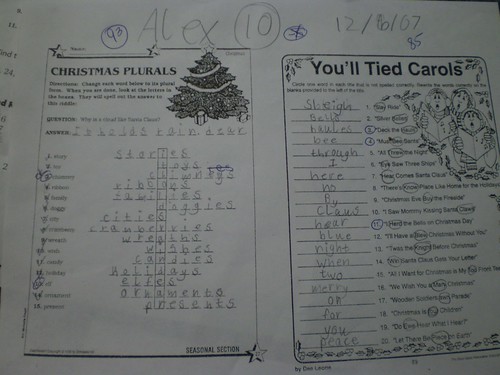
Like many of you, I've been working with the SAMR model of technology integration to help myself and others redefine learning in a technology enhanced environment. I contend that digitizing the workflow for worksheets isn't Substitution. In fact, it doesn't even land on the SAMR continuum in my opinion. Not only are there a ridiculous number of hurdles to making worksheets paperless, hurdles that interfere with the basic intent to "be instructive and provide meaningful practice and application of ideas", but it makes the most important elements of timely feedback and fixing mistakes nearly impossible.
Here is what many of my conversations have started to sound like or will sound like going forward.
- If the worksheet is worth doing (i.e. it is instructive and provides meaningful practice or application) feel free to make copies and hand it out.
- Feel free to put a digital copy (within copy rights) online for students and families to access as a reference and for printing.
- Allow a student to annotate and submit the work electronically if needed (long term illness or travel) and take the time to give feedback.
And here are my tips for transitioning toward digitally enhanced forms of practice and application that take some cues from or extend the activities found on the worksheets.
- Add QR Codes or weblinks to the top of the worksheet that link to support resources, audio recordings of the directions and questions, challenge questions, or online group discussions.
- Take questions that have fixed responses such as True/False and multiple choice and use a digital assessment tool like Socrative, Edmodo quizzes, or Google Forms to automatically grade student responses and provide immediate feedback.
- Take one or two open ended questions that require higher order thinking skills or application of knowledge and ask students to submit digital responses, electronic projects, videos, etc. in response to these questions.
- Challenge students to develop questions that fall across Bloom's taxonomy and then distribute these to their peers using a tool like Google Forms or a discussion forum in Moodle.
- Consider Project Based Learning (PBL) as a way to move away from textbooks and worksheets and into authentic and purposeful learning driven by meaningful "driving questions".
How would you add to this list of tips and what suggestions do you have for teachers hoping to transition away from traditional worksheets using effective teaching methods and digital tools? Oh, and if you happen to be riding the Unicorn of Digital Worksheet Love share your secret to success.
Friday, September 6, 2013
Chrome Browswer Tips and Tricks for Students - Google Dictionary Extension

Lesson idea
Wednesday, August 28, 2013
#UDL reading and writing supports for the Chromebook and Chrome Browser
I've been asked to develop a list of Chrome Apps and Extensions that enable reading and writing supports such as text-to-speech, speech-to text, and dictionary tools for students in my district. Here's my first round picks that I feel address some of these needs. Do you have a Chrome App or Extension that you would recommend? Please feel free to add your suggestions or ideas in the comments section.
- For text-to-speech I recommend the Chrome extension - Chrome Speak or Select and Speak. The student highlights the text, right clicks and selects speak.
- The Google Dictionary extension will open a definition and audio for any word on any web page by double clicking the word.
- The Read & Write extension for Google Drive puts a toolbar on the top of the Google Docs editor that adds text-to-speech, a dictionary tool, visual dictionary tool, and special highlighting tools with extraction features.
- The Announcify extension takes online articles on sites like CNN or NYT and strips out all adds and distracting visuals, so that only text is visible, enables text-to-speech, and has easy option for enlarging text.
- Voice Recognition is a Chrome app that is equivalent to Dragon Dictation for doing voice-to-text.
Update: Thanks to Mike Marotta via Twitter who suggested Spell and Grammar Checker by Ginger
@kithard Great post. One other key support in Chrome for struggling writers is the Ginger Spell and grammar extension.
Saturday, May 11, 2013
A quick introduction to Google Chrome
A quick introduction to Google Chrome
Quick note about this post: My district pushed out Chrome to all district computers on Thursday. In anticipation of having some questions about this new browser choice I put together this introductory resource. |
| Source: http://tinyurl.com/63rlrca |
What is the Chrome web browser? - The Chrome web browser is a piece of software installed on the computer used for accessing the Internet. Other examples of a web browser are Internet Explorer and Firefox. Download Chrome Here
 |
| Source: http://tinyurl.com/bqgrpf7 |
Why do I need two web browsers? Can’t I just use Internet Explorer? - Older versions of Internet Explorer can no longer be updated on district computers. As a result newer websites may not work properly. In some cases information on a page may not display properly or is blank. In other cases the site will not work at all. Examples of this are websites like Google Drive and Edmodo. At the same time there are still occasions when it is better to use Internet Explorer to access older websites. For instance, individuals who use the Bitech software or accessing your district email using the internet. A good troubleshooting strategy is that when something isn’t working on the Internet try opening the website in a different browser.
What’s so special about Chrome? - Lots of things! But the main reasons for using Chrome are because its usually much faster loading websites, it is the best way to use Google Drive (Docs) and other modern websites, and it has really useful add ons called extensions and web apps that make the browser very powerful and more useful. It’s a little bit like using the App Store on your iPad.
When I open Chrome it says to sign-in. Do I have to? - No. You can easily skip this by clicking on the “skip this step” link in the bottom right hand corner of the message.
Can I sign-in to Chrome if i want to? - Yes. But preferably you should be using your Marysville Google Apps account to sign-in. If you don’t know your Marysville Google Apps account but would like to please contact me. By the way, your Marysville Google Apps account is what you also use to access Google Drive (Docs).
Where’s the search bar? - Google Chrome combines the search bar and address bar into one bar called the “omnibox”. Just type in your search terms and Bingo! You're immediately sent to a Google search, or type in a web address like http://edtechkit.com and you’ll be sent directly to that site. This saves a lot of time and browser space.
Can I import my Bookmarks and Favorites from Internet Explorer into Chrome? - Sure. Just click on the settings icon in the upper right hand corner of the browser. Then hover your mouse over “bookmarks” and select “import bookmarks” from the open menu.

Can I make Chrome my default browser? - Yes. Just click on the settings icon in the upper right hand corner of the browser. Then click on settings from the menu. Scroll down on the settings page to the Default browser section. Making Chrome your default browser will force links in emails and documents to open using Chrome rather than Internet Explorer.

What else can Chrome do? - Patience grasshopper. I’ll be sharing more about Chrome in the future and offering some face-to-face sessions about Chrome and Google Drive. But if you can’t wait, let me recommend this blog post as your next step. Enjoy!
Subscribe to:
Comments (Atom)