Monday, September 30, 2013

How to print a Moodle quiz

Directions for Printing a Moodle Quiz

This is not a “perfect” print solution but it should give you a print copy that could be used with students and a printable version for submitting as part of an assessment evaluation portfolio.


  1. Go to the quiz settings and change the Layout setting for New Page to “never, all questions on one page”

  2. Click on Save and preview

  3. Highlight the test questions

  4. Right click and select print

  5. Adjust Print settings as desired

  6. Go back to the quiz settings and change the Layout setting back to your desired view.


Friday, September 27, 2013

Using the Pic Collage App as a Graphic Organizer for Vocabulary Instruction

Pic Collage is one of my favorite iPad apps. In the short video demonstration below I show how to use the frame tool to set up a basic vocabulary template and look at some ways to use Pic Collage with students as a graphic organizer. 

Tip: The frame tool may not work for every graphic organizer layout you would like students to use. Take a picture of a Venn Diagram, Character map, etc. that you've used in the past and set the image as a background using the background tool instead of the frame tool. 

Video link


I'd also highly recommend this blog post by Joe Bower on the importance of direct vocabulary instruction tied to best practices. Pic Collage fits nicely with Step 3 (non-linguistic representation) of Marzano's vocabulary strategies. 


Tuesday, September 10, 2013

Opening and editing Word and PDF documents on the Chromebook

In a somewhat ironic follow up to my last post, I want to share a resource I put together for our 1:1 Chromebook program at Marysville High School which outlines some steps for making the opening and editing of Word and PDF documents on the Chromebooks a little less painful. As I mentioned to my staff, the process that I'm sharing is not the only solution, merely one that I hope will reduce some of the steps normally involved. And as I also shared with my staff, this process may be changing soon if Google releases the Quick Office viewer and editing features to Google Drive later this Fall. 

Even though I don't advocate asking students to complete digital worksheets, there are sure to be times when viewing and marking up Word or PDF documents found on the web is necessary and helpful. 


Opening and editing Word and PDF documents on the Chromebook

Click here to watch the video tutorial


  1. Immediately after installing a Docs PDF/Powerpoint Viewer Options tab will open, displaying the file types that will be opened in the Google Drive viewer.
  2. Check the PDF option (Option 1) at the top and then click Save at the bottom of the screen


  1. Click on a word document on any website
  2. The document will now open in the Google Drive Viewer
  3. To open and edit Word or PowerPoint click on the “Edit Online” icon
  4. This will make a new editable copy for the student to work on
  5. For PDF documents click “Add to Drive” icon
  6. Locate the PDF file in the Google Drive inbox, right click on the file and select PDF Zen
  7. In PDF zen use editing tools to mark up, click on “Actions” icon to save changes back to Google Drive or to get URL link for sharing or submitting in Moodle/Edmodo.

Saturday, September 7, 2013

The Problem with Paperless

cc licensed ( BY SA ) flickr photo by Wesley Fryer: http://flickr.com/photos/wfryer/2110288948/
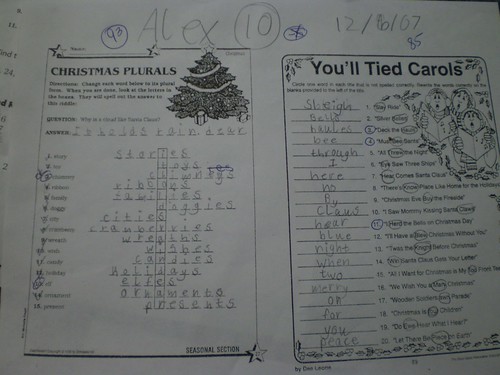
As I've been in and out of various classrooms this week a recurring theme has emerged - going paperless. While I applaud the intention of saving trees and making classroom resources accessible 24/7 across a variety of devices, there is a problem. There is a problem with digitizing worksheets and the convoluted workflow that inevitably ensues. This is especially true of worksheets that come from textbook providers, but also teacher-created worksheets in many cases. I want to be clear. I don't really have a problem with worksheets - they can be instructive and provide meaningful practice and application of ideas - at least in theory. And, yes, their are many worksheets that are worthless, time-killing, busy work that barely scratch the bottom of Bloom's taxonomy. But good or bad worksheets pose a particular problem in digital learning environments. You see, a worksheet was designed to be completed, submitted, assessed, marked-up and handed back by hand. Pen, pencil, crayon - doesn't matter, but most worksheets were not DESIGNED to be completed, submitted, assessed, and marked-up or handed back on a Chromebook or an iPad. I know what some of you will say next. But, Kit! We have done exactly that. We scan and upload every worksheet to our [fill in the web presence tool of your choice], the students download and open the worksheet on their [fill in the personal computing device of your choice], and they [draw, type, record] on top of the worksheet and submit it electronically to their teacher's [email, blog, LMS, Google drive] where the teacher then individually opens each worksheet on their [fill in the personal computing device of your choice], where they [draw, type, record] on top of the worksheet to provide feedback and submit it electronically back to the student with a grade [that they then must re-enter into some separate student grading system that the district uses - one that definitely did nothing to aid or facilitate the "simple" steps described herein] Are you kidding me!? I challenge you to find me a teacher out there who not only follows those steps but then provides students with the opportunity to fix mistakes or improve their initial submissions. It doesn't happen. More importantly, I don't want to teach others how to inflict this kind of worksheet hell upon themselves or our students.

Like many of you, I've been working with the SAMR model of technology integration to help myself and others redefine learning in a technology enhanced environment. I contend that digitizing the workflow for worksheets isn't Substitution. In fact, it doesn't even land on the SAMR continuum in my opinion. Not only are there a ridiculous number of hurdles to making worksheets paperless, hurdles that interfere with the basic intent to "be instructive and provide meaningful practice and application of ideas", but it makes the most important elements of timely feedback and fixing mistakes nearly impossible. 

Here is what many of my conversations have started to sound like or will sound like going forward.

  1. If the worksheet is worth doing (i.e. it is instructive and provides meaningful practice or application) feel free to make copies and hand it out.
  2. Feel free to put a digital copy (within copy rights) online for students and families to access as a reference and for printing.
  3. Allow a student to annotate and submit the work electronically if needed (long term illness or travel) and take the time to give feedback.
And here are my tips for transitioning toward digitally enhanced forms of practice and application that take some cues from or extend the activities found on the worksheets.
  1. Add QR Codes or weblinks to the top of the worksheet that link to support resources, audio recordings of the directions and questions, challenge questions, or online group discussions.
  2. Take questions that have fixed responses such as True/False and multiple choice and use a digital assessment tool like Socrative, Edmodo quizzes, or Google Forms to automatically grade student responses and provide immediate feedback.
  3. Take one or two open ended questions that require higher order thinking skills or application of knowledge and ask students to submit digital responses, electronic projects, videos, etc. in response to these questions.  
  4. Challenge students to develop questions that fall across Bloom's taxonomy and then distribute these to their peers using a tool like Google Forms or a discussion forum in Moodle.
  5. Consider Project Based Learning (PBL) as a way to move away from textbooks and worksheets and into authentic and purposeful learning driven by meaningful "driving questions".
How would you add to this list of tips and what suggestions do you have for teachers hoping to transition away from traditional worksheets using effective teaching methods and digital tools? Oh, and if you happen to be riding the Unicorn of Digital Worksheet Love share your secret to success. 

Friday, September 6, 2013

Chrome Browswer Tips and Tricks for Students - Google Dictionary Extension


The Google Dictionary Extension gives you one click instant access to definitions and pronunciations for words you encounter on the Web.


Lesson idea

  1. Find an article(s) that you would like students to read and which you know contains words that may be misunderstood or unknown
  2. Ask students to add the Google Dictionary Extension to their Chrome Browser
  3. Have students identify unknown words, view the basic definition and the additional resources linked to the definition
  4. Encourage students to click on the audio icon to hear unfamiliar words read outloud
  5. Have students open a Google Doc to collect words they find
  6. Use a Google form to collect an "exemplar" word from each student for accountability and to build a class collaborative resource


Wednesday, August 28, 2013

#UDL reading and writing supports for the Chromebook and Chrome Browser

I've been asked to develop a list of Chrome Apps and Extensions that enable reading and writing supports such as text-to-speech, speech-to text, and dictionary tools for students in my district. Here's my first round picks that I feel address some of these needs. Do you have a Chrome App or Extension that you would recommend? Please feel free to add your suggestions or ideas in the comments section.

  1. For text-to-speech I recommend the Chrome extension - Chrome Speak  or Select and Speak. The student highlights the text, right clicks and selects speak.
  2. The Google Dictionary extension will open a definition and audio for any word on any web page by double clicking the word.
  3. The Read & Write extension for Google Drive puts a toolbar on the top of the Google Docs editor that adds text-to-speech, a dictionary tool, visual dictionary tool, and special highlighting tools with extraction features.
  4. The Announcify extension takes online articles on sites like CNN or NYT and strips out all adds and distracting visuals, so that only text is visible, enables text-to-speech, and has easy option for enlarging text.
  5. Voice Recognition is a Chrome app that is equivalent to Dragon Dictation for doing voice-to-text.
Update: Thanks to Mike Marotta via Twitter who suggested Spell and Grammar Checker by Ginger

Great post. One other key support in Chrome for struggling writers is the Ginger Spell and grammar extension.

Saturday, May 11, 2013

A quick introduction to Google Chrome


A quick introduction to Google Chrome
Source: http://tinyurl.com/63rlrca
Quick note about this post: My district pushed out Chrome to all district computers on Thursday. In anticipation of having some questions about this new browser choice I put together this introductory resource.


What is the Chrome web browser? - The Chrome web browser is a piece of software installed on the computer used for accessing the Internet. Other examples of a web browser are Internet Explorer and Firefox. Download Chrome Here


Source: http://tinyurl.com/bqgrpf7
Why do I need two web browsers? Can’t I just use Internet Explorer? - Older versions of Internet Explorer can no longer be updated on district computers. As a result newer websites may not work properly. In some cases information on a page may not display properly or is blank. In other cases the site will not work at all. Examples of this are websites like Google Drive and Edmodo. At the same time there are still occasions when it is better to use Internet Explorer to access older websites. For instance, individuals who use the Bitech software or accessing your district email using the internet. A good troubleshooting strategy is that when something isn’t working on the Internet try opening the website in a different browser.


What’s so special about Chrome? - Lots of things! But the main reasons for using Chrome are because its usually much faster loading websites, it is the best way to use Google Drive (Docs) and other modern websites, and it has really useful add ons called extensions and web apps that make the browser very powerful and more useful. It’s a little bit like using the App Store on your iPad.


When I open Chrome it says to sign-in. Do I have to? - No. You can easily skip this by clicking on the “skip this step” link in the bottom right hand corner of the message.


Can I sign-in to Chrome if i want to? - Yes. But preferably you should be using your Marysville Google Apps account to sign-in. If you don’t know your Marysville Google Apps account but would like to please contact me. By the way, your  Marysville Google Apps account is what you also use to access Google Drive (Docs).


Where’s the search bar? - Google Chrome combines the search bar and address bar into one bar called the “omnibox”. Just type in your search terms and Bingo! You're immediately sent to a Google search, or type in a web address like http://edtechkit.com and you’ll be sent directly to that site. This saves a lot of time and browser space.


Can I import my Bookmarks and Favorites from Internet Explorer into Chrome? - Sure. Just click on the settings icon in the upper right hand corner of the browser. Then hover your mouse over “bookmarks” and select “import bookmarks” from the open menu.


Can I make Chrome my default browser? - Yes. Just click on the settings icon in the upper right hand corner of the browser. Then click on settings from the menu. Scroll down on the settings page to the Default browser section. Making Chrome your default browser will force links in emails and documents to open using Chrome rather than Internet Explorer.


What else can Chrome do? - Patience grasshopper. I’ll be sharing more about Chrome in the future and offering some face-to-face sessions about Chrome and Google Drive. But if you can’t wait, let me recommend this blog post as your next step. Enjoy!


Monday, April 1, 2013

Edtech Weekend Report 4/1/13 - Happy Spring Break! No Foolin'


Links of the week

Working with "at-risk" students for years has led me to one clear conclusion when it comes to grading; Zeroes are one of the worst grading policies for supporting learners. There's a blog post in that sentiment for sure, but lately my twitter and blog reader have been filling up with post like these.
My former principal and all around great guy, Pete Spencer, wrote a nice post asking Why so few career connections in classrooms? He makes some important points about relevancy and real world connections to careers in schools. 

And if you haven't heard about http://www.edcanvas.com yet then now's the time. This site is getting lot's of buzz lately as a way to curate content on the web for your blended classroom or as an alternative to traditional presentation tools for students. Here's an example of an edcanvas put together by another fantastic ed techie, Kristin Day, on using QR codes in the classroom

Upcoming events

If you are over on Michigan's southwest side you might want to check out the Southwest Michigan iPad Conference on June 20, 2013 at Barrien RESA.

Here's another opportunity to attend an Edcamp. Edcamp Novi is May 18th hosted by Novi schools.

And finally, Todd Bloch, a Michigan educator you should be following, has suggested that #miched start compiling a list of PD and conference opportunities around the state. I totally agree. Especially since my little attempt here to cover these myself is sure to be falling short. If you have an event you would like to promote be sure to share it out on Twitter using the #miched hashtag.

New apps to check out

CK-12 has just released a new app to showcase their open source e-textbooks and learning resources. The app features a digital library for searching and downloading their books. I'm not entirely sure if the app is a better alternative to reading the e-textbooks in iBooks or online at the moment, but it's encouraging to to see how the platform continues to evolve


 Roll your own PD

So this week I didn't create any new resources myself, but that doesn't mean that there aren't tons of awesome ways to keep on learning. The REMC Connected Educator Series features a variety of topics in short digestible chunks presented by educators from around Michigan. The latest in this series is from Gary Abud showing how he has made a Bring Your Own Device policy an integral part of his classroom. 


College ready vs. Innovation ready

The future is hard to predict. Perhaps that's why it's easier to set goals that target specific and measurable outcomes - like college graduation for instance. Successfully completing a post-secondary program has long been one of the surest guarantees of economic success. But is this model sustainable? A Masters degree is becoming the de facto qualification and that the costs of a university education continue to sky rocket. I'm not saying that there is no value in having the skills necessary to successfully complete college, but I also believe this landscape is shifting rapidly. Traditional brick-and-mortar college classes are becoming increasingly blended or are moving entirely online. Knowledge based courses that essentially "cover" content are competing against the Internet and losing. Meanwhile fewer careers are going to be available based solely on what you know, instead demanding entrepreneurs who can work with existing sets of knowledge to create solutions to problems and needs that don't exist yet. As this New York Times op-ed says, a base set of knowledge is still important, but more and more it is the ability to synthesize this knowledge into new ideas, new solutions, and new products that will be valued by employers and society. The good news is that these are the careers of passionate, empowered, creative people. It's a move toward a society of intrinsic productivity and voluntary interdependence. I think it's exciting.


Sunday, March 24, 2013

Edtechkit Weekend Report 3/24/13 - Ch...Ch...Ch...Changes

Links of the week

I took a few weeks off from my Weekend Report series to prepare for and embrace new changes in my career (see below). Now I have so many amazing resources I've bookmarked and favorited I hardly no where to start. So I'll begin with this Prezi that tells the tale of Mission Hill public school in Boston, MA through beautifully documented video and exploratory tasks for the viewer. I've only skimmed through this brilliant edustory but figure this is a must view since it inspired me to fire this post up.


I know I mention the #miched hashtag and twitter community quite often. That's because it's an amazing group of educators that are committed to sharing and growing as professionals. Last week Brad Wilson (@dreambition) put the final touches on the second #miched podcast focussed on designing learning spaces. This is a topic that is near and dear to my heart because my dad was an architect who spent most of his career designing schools in rural Wyoming. He loved talking to teachers and students about how the design of a building and the learning environment influence learning and the challenge of transforming these conversations into physical spaces he designed. I was honored to skype with Brad to discuss my dad's passion and my own experiences with designing learning spaces. You can hear part of our conversation as well as some other amazing educators from Michigan who are looking deeply at this topic.


Like I said, a month off from sharing great links can lead to quite a back log but here are a few more that you may want to check out.

Upcoming events in Michigan

April 20, 2013 Jackson ISD will be hosting an innovative conference that plans to be half edcamp half brain trust (bringing in the REMC Connected Educators from around the state). It's sure to be a can't miss.

How about attending Michigan's unconference jugernaut, EdCamp Detroit, on March 4, 2013. An unconference empowers educators to facilitate and/or participate in spontaneous participant driven professional development. It's the kind of event that leads to quotes like "This was the best PD EVER!"

In January I was fortunate to have attended the Educon 2.5 conference at the Science and Leadership Academy in Philadelphia. It was an amazing "conversation" conference and quite different from any conference format I had ever participated in. Great news! NovaNow promises to bring this innovative conference format to Michigan September 27-28 in Grand Rapids. It will be hosted by Kent ISD at Kent Innovation High. 

Roll your own professional development

For this year's MACUL conference I put together a series of videos and slide deck on using the iPad as a tool for Universal Design for Learning. I enjoyed sharing the UDL framework with participants and showing them how the accessibility features of the iPad and a variety of apps can be used to support all learners in the classroom. 


Ch...ch...ch...changes

I love working alongside teachers and with students to design and implement dynamic and meaningful opportunities for learning. I like seeing what works, what doesn't work, and iterating over and over again until a workable model emerges. I love building relationships and having the opportunity to see the impact of conversations and in-class support coming together successfully in a lesson. I'm passionate about making our schools a great place for students and educators. And I've been fortunate to be doing this my entire educational career. 

Starting this week, I'll continue to do this in my new role as the Education Technology Specialist for Marysville Public Schools. Leaving my position with our local RESA was not easy. Working with eight different school districts was amazing and helped me to grow in so many ways. Now, by focusing on one school district that is already working very hard to innovate and evolve, I look forward to growing even more. This is an exciting time in education. One also fraught with challenges. Here's to new horizons and new opportunities. It's all about the journey.


Wednesday, March 13, 2013

Universal Design for Learning Strategies for the iPad: Text-to-speech

In this video I continue to discuss how to apply the accessibility features on the iPad through the framework of Universal Design for Learning. The video focusses on strategies for supporting all learners in the classroom using the iPad's built in text-to-speech settings.


via Integrating iPads in Education - iLearn iPad Blog http://ilearnipad.weebly.com/1/post/2013/03/universal-design-for-learning-strategies-for-the-ipad-text-to-speech.html

Universal Design for Learning Strategies for the iPad: Text-to-speech

In this video I continue to discuss how to apply the accessibility features on the iPad through the framework of Universal Design for Learning. The video focusses on strategies for supporting all learners in the classroom using the iPad's built in text-to-speech settings.

Friday, March 8, 2013

Universal Design for Learning iPad Strategies: Text Accessibility

Over the next few weeks I'll be making a series of videos covering different Universal Design for Learning strategies for the iPad. This first video looks at different features on the iPad that make text more accessible for all students not only by enlarging the font size but also by providing greater focus or by allowing students to add greater detail to handwritten annotations on various note taking apps.


Wednesday, February 27, 2013

A Blast from the past - My 2011 RESA TV interview discussing the #ttdn technology integration pilot program

St. Clair County RESA has been producing educational videos and news segments for many years. They've recently published a RESA TV Youtube channel that has many great resources for schools and the classroom.

One video worth checking out features teachers and students at Belle River Elementary showcasing their Digital Learning Day activities and celebrations.


As I was watching some of the videos from the RESA TV channel I came across this April 2011 Dateline Schools interview of myself discussing our Tools for Teaching Digital Natives technology integration pilot program that we ran during the 2010-11 school year. I was surprised to hear how much of what we did in this pilot that is still relevant today. You can hear my reflections about this program from the 5-17 minutes mark and also hear how this program impacted one of our participants, Jill Parrot from Port Huron Area School District. Jill is an amazing educator who has gone on to do some amazing work in her classroom. Thanks for watching.


Saturday, February 23, 2013

Edtechkit Weekend Report - 2/23/13 "Design is a form of activism"


Links of the week

Pixabay.com is a great place for teachers and students to find beautiful, high impact images that are available under the Public Domain license. This means they are free to use in just about every way. Of course giving credit with proper citation is still highly recommended.

Speaking of pictures. I'd also like to suggest taking a moment to view this TED-x video entitled Teaching Without Words. It hits on many important Universal Design for Learning principles and the importance of using visual feedback to support learners.


If you aren't participating in the #miched chats every Wednesday at 8pm then you should be. This Wednesday was no exception with teachers sharing some of their favorite web tools and how they are using them in the classroom. I'm most excited about infuselearning.com which I learned about in the chat last week.

Here are a few more of my Twitter favorites from the week.


Favorites


  1. Lots of shushing at IDEO school design event. Can we design that out?

  2. What does an Ed Tech Coordinator Do?  ( a cartoon) via the Innovative Educator

  3. The resources on  educon page are the euqivalent of taking a class on design thinking 

  4. Just Block EVERYTHING - Texas Principal  


News and Upcoming Events in Michigan

MASSP iPad Summit March 26 (MSU Henry Center) - Only 35 seats left for the Michigan Association of Secondary Schools Prinicipals iPad Summit conference. If your district is implementing or planning to implement iPads at the Secondary level then you won't want to miss this opportunity to learn how schools  in Michigan are transforming student learning using iPads. I'm honored to have been asked to keynote this exciting event and look forward to setting the stage for the day with what I think will be a very fun theme: "iPad Magic - How to Wrangle the Unicorns"

It's Official! Save the date. April 20, 2013 Jackson ISD will be hosting an innovative conference that plans to be half edcamp half brain trust (bringing in the REMC Connected Educators from around the state). It's sure to be a can't miss. Details to follow.

How about attending Michigan's unconference jugernaut, EdCamp Detroit, on March 4, 2013. An unconference empowers educators to facilitate and/or participate in spontaneous participant driven professional development. It's the kind of event that leads to quotes like "This was the best PD EVER!"

New Apps to check out

This one's not exactly new and it's not directly educational but the Public Radio Player app recently received a major overhaul that updated the user interface and added the ability to download episodes of featured Public Radio programs like This American Life and Car Talk. Unlimited access to most music genres, news from around the country, and great programming shouldn't be overlooked as a resource for the classroom.

This week I'm also recommending that teachers take a look at the updated version of the Puppet Pals App. Like the Public Radio Player this is a major refresh of the original app. So much so in fact that it has actually been released as a new app entirely - Puppet Pals 2. With better animations and new characters and backgrounds this is a must have app for any classroom. 

Roll your own professional development

I use Weebly websites for both my edtechkit.com and ilearnipad.weebly.com sites. In my mind it is the fastest, most intuitive way to get a website up an running. While there are more advanced tools out there that teachers can and perhaps should use to represent their classrooms online I feel that Weebly is an important first step for many teachers needing to make the leap to making digital content available to their students.

My Weebly training resources are available here for individuals looking to learn a bit more about Weebly. It's also part of my flipped-training model that helps me maximize my face-to-face training time.


Thought for the week

On Tuesday I participated in a professional development day with one of our local school districts. The morning session was intended to expose the teachers in this district to the Future of Learning design process introduced to our county by Dr. Bryan Setzer of  2Revolutions. One big idea that I keep coming back to is a quote from their introductory video that states, "Design is a form of activism". This idea, that the design process is proactive, empowering, and Revolutionary is important at a time when education is not only under fire but also undergoing sweeping changes. And I'm equally drawn to a quote from the IDEO design website that describes design as "solving problems with elegance and beauty". Put these together and we have the opportunity to radically redefine education on our terms but in a manner that is unmistakably attractive. Attractive in the sense that it appeals of our aesthetic sensabilities as well as our common sense and thus lays to rest the notion that we are failing our children.


Week 01 IDEO from Design Thinking for Educators on Vimeo.